Manual:Accounts Payable: Difference between revisions
| (92 intermediate revisions by 7 users not shown) | |||
| Line 1: | Line 1: | ||
== Purchase Order == | [[Category:Applications]] | ||
=Accounts Payable= | |||
===Purchase Order=== | |||
'''Menu Location:''' Inventory / Inventory PO / Purchase Order | '''Menu Location:''' Inventory / Inventory PO / Purchase Order | ||
=== Inventory Receipt === | :1. Click '''Add''' | ||
:2. Enter '''Order From''' company | |||
1. Search to find Order | :3. Enter '''Ship To''' company | ||
2. Click Create Invoice button | ::*If blank, defaults to your organization’s address displayed on the Main tab (Ship To fields will be blank on Order) | ||
:4. Click '''Select Orders''' to choose Order (inserts Ref PO#) | |||
:5. Enter '''Purchase Order Lines''' and update as needed | |||
:'''Buttons'''<br> | |||
:*'''Create Invoice''' – creates Accounts Receivable invoice for customer in '''Ship To''' | |||
:*'''Select Orders''' (start with empty record) – creates a purchase order from an order | |||
:*'''Receive PO''' – receive items on Purchase Order into Inventory – creates an unassigned receipt; when invoice is received and entered, it relieves the unassigned receipt | |||
:*'''Close PO''' Changes <b>Close OR</b> flag to True on all Purchase Order Lines without impacting inventory counts | |||
:*'''Back Orders''' generates a back order report showing what has shipped and what hasn't shipped | |||
===Entering an Invoice=== | |||
'''Menu Location:''' AP / AP Invoice | |||
{{EpiphanyHelpText|Screen|4}} | |||
:1. Select [[File:Add.png]] from the Toolbar | |||
:2. To Select from an existing Purchase Order, click [[File:Select_PO.png]] | |||
:::a. Information will auto-populate from existing Purchase order and fields can be updated as necessary, OR enter invoice manually: | |||
:::b. Enter Date (typically the date of the Invoice) | |||
:::c. Enter Vendor’s Name (if name doesn’t exist, click Add Record) | |||
:::d. Enter Person (optional) | |||
:::e. Address will automatically populate, if different, remove displayed address by clicking on – sign and then click on + sign to choose existing address from Address Table (or add new if needed) | |||
:::f. Pay To field is auto-populated; however, if paid by Credit Card, then remove default Company and enter Credit Card Company | |||
:::g. Sup Inv# – Invoice number appearing on Invoice | |||
:::h. Terms – default (change if needed) | |||
:::i. Due date defaults to current date, but can be changed as needed | |||
:::j. Enter Quantity | |||
:::k. Enter or select Account then tab through Line Desc (auto-populated) | |||
:::l. Unit price may auto-populate, but can be updated as needed (tab through Line Desc, and Price fields) | |||
:::m. Enter any pertinent comments | |||
:::n. Save | |||
::::*Verify the total on the screen matches the total on the Invoice | |||
:Create RMA – creates an RMA for the purchase order displayed | |||
::1. Search for Invoice | |||
::2. Click RMA (assigns RMA #) | |||
::3. Review Purchase Order Line information | |||
===Inventory Receipt=== | |||
'''Menu Location:''' Inventory / Inventory Receipt – actual receiving of product from a BOL/packing slip | |||
:1. Search to find Order | |||
:2. Click '''Create Invoice''' button | |||
::*Create RMA – creates an RMA for the purchase order displayed | |||
:1. Search for Invoice | |||
:2. Click RMA (assigns RMA #) | |||
:3. Review Purchase Order Line information | |||
===Pay Invoices=== | |||
====Select/Approve AP Invoices==== | |||
'''Menu Location:''' AP / Pay Invoices | |||
:1. Select unpaid AP invoices to be approved/paid by clicking on the invoice line. (To deselect, click the invoice line again). | |||
:2. Once all invoices to be approved have been selected, click [[File:ApprovalScreen.png]] in the lower right corner. | |||
====Create Payments==== | |||
'''Menu Location:''' AP / Prepare Checks | |||
:1. The AP Payment Approval screen shows all invoices selected to be paid and invoices needing approval before being paid. | |||
::a. To remove an invoice, select the invoice to be removed and click [[File:RemoveSelected.png]]. This will remove the invoice line and move it back to the Pay AP Invoices screen (unpaid invoices). | |||
::b. The total amount due of all the invoices approved will display at the bottom right of this screen. If an invoice is removed the total will be adjusted accordingly. | |||
:2. Click [[File:CreatePayments.png]] to create checks for these invoices. | |||
:3. The following pop-up will appear: | |||
::[[File:PrintChecksPopUp.png]] | |||
::a. Click '''Yes''' to open the check print dialog box and print the checks (see '''Print Checks''' section below). | |||
::b. Click '''No''' to create the payments without printing a physical check. | |||
:::i. These payments will be added to the Check Entry Table and can be printed any time. | |||
:::ii. The Check Entry Table can be viewed by going to the following menu location: AP / Check Entry/Edit. | |||
====Print Checks==== | |||
'''Menu Location:''' AP / AP Reports / Print Checks | |||
=== | =====Print Physical Checks===== | ||
:[[File:PrintChecksDialog.png]] | |||
::1. Select <b>Print Checks</b> radio button | |||
::2. Enter Account | |||
::3. Enter starting check number (in the case of payments that do not have a physical check number attached to them, such as ACH and online payments, unique custom check numbers should be used) | |||
3. | ::4. Load printer with stock | ||
::5. Click Print | |||
:::a. Upon clicking Print the GL postings and journal entries take place and the check status on the check records changes to P | |||
:::b. To see a preview of the check click Preview. This will not print the check, post to GL, create the journal entries, or alter the check status | |||
=====Make An Online Payment===== | |||
:[[File:PrintDialogO.png]] | |||
::1. Select <b>Online Payment</b> radio button | |||
::2. Enter Account | |||
::3. Enter starting check number | |||
::4. Click Post | |||
=====Create An Automated Clearing House (ACH) File===== | |||
:[[File:PrintDialogACH.png]] | |||
::1. Select <b>ACH File</b> radio button | |||
::2. Enter Account | |||
::3. Starting check number - OPTIONAL. If using check numbers for ACH, the first check number must start with a number of 10 or higher. | |||
::4. Click Create | |||
===Reprint A Check=== | |||
1. | '''Menu Location:''' AP / Check Entry/Edit | ||
::1. Find Check Number to be reprinted | |||
::2. Click Re-Print button | |||
:::*Check Status will change to “R” for Reprint | |||
::3. Go to '''Menu Location:''' AP / AP Reports / Print Checks | |||
::4. Change Check Status to “R” | |||
::[[File:PrintChecksR.png]] | |||
::5. If paying from a non-standard checking GL account, enter the Account Number | |||
::6. Enter the Check Number from the physical check in the printer | |||
::7. Change Date if the check date is not today’s date | |||
::8. Click Print – In addition to printing the checks, the Check Printing process changes the Epiphany Database in the following ways: | |||
:::*Check Status is changed to “P” for Printed | |||
:::*The Check Number of the check is assigned | |||
:::*A Journal Entry is created removing dollars from Cash GL account, and balancing with the Check Distribution amount on the check | |||
=== Check | ===Reprint a Check Stub Notification for an Employee=== | ||
'''Menu Locaton:''' Applications / Insight Reporting / Accounts Payable / Payment Notification | |||
:1. Navigate to the Payment Notification Report | |||
:2. Enter the Check Number of the check stub to reprint. | |||
:3. Print or Save Report. | |||
=== | ===Void A Check=== | ||
=== | '''Menu Location:''' AP / Check Entry/Edit | ||
'''Menu Location:''' | |||
::1. Find Check Number to be Voided | |||
::2. Click Void Check button | |||
::*Check status will change to “V” for Void | |||
::*A Journal Entry is created to reverse the distributed amount | |||
===Check Entry/Edit=== | |||
'''Menu Location:''' AP / Check Entry/Edit | |||
The Check Entry/Edit screen is where check information can be entered and edited (when there is no AP Invoice). This screen also displays additional check information such as the check stub lines, check status, and the distributed amount of the check. | |||
Enter A Check: | |||
::1. Click [[File:Add3.png]] | |||
::2. Enter a check number | |||
::3. Select Person and/or Company (Lines below will autofill with the name and addresses attached to this Person or Company) | |||
::4. Enter account number | |||
::5. Enter distributed amount by entering the account number to be applied to and amount | |||
::6. Enter note for check stub lines (Optional) | |||
::7. Click [[File:Save.png]] | |||
Editing Check Information: | |||
::1. To edit check, click the [[File:Edit.png]] button, enter in the relevant check information, and then click the [[File:Save.png]] button. | |||
::2. To cancel an edit click the [[File:CancelEdit.png]] button. | |||
Check Statuses: | |||
::*R = Reprint (edit check and change status to R to reprint, or click the [[File:Re-Print.png]] button) | |||
::**A check with the status of ‘R’ will no longer be editable as it has been printed. | |||
::*X = Unprinted Check(check has not been printed yet) | |||
::*P = Printed(check has been printed) | |||
::**A check with the status of ‘P’ will no longer be editable as it has been printed. | |||
::**If Account Number is blank or Distributed Amount table has no entries, the check will not be printed. | |||
::*V = Voided(edit check and change status to V to void check, or click the [[File:VoidCheck.png]] button) | |||
::**A check with the status of ‘V’ will no longer be editable as it has been voided. | |||
::*O = Online | |||
::**Online checks produce a file instead of a physical check when printed. The file location can be set/found in defaults on the ‘Checks’ tab in the ‘ACH File Path’ field. | |||
::*A = ACH | |||
::**ACH checks produce a file instead of a physical check when printed. The file location can be set/found in defaults on the ‘Checks’ tab in the ‘ACH File Path’ field. | |||
::*Cleared Flag – Indicates when check has cleared. | |||
=== | ===Reports=== | ||
:*Purchase Orders (Inventory / Inventory PO / Purchase Order or Open Purchase Orders) <br> | |||
:*AP Aging <br> | |||
:*See Insight Reporting for all available AP Reports <br> | |||
Latest revision as of 21:00, 27 May 2026
Accounts Payable
Purchase Order
Menu Location: Inventory / Inventory PO / Purchase Order
- 1. Click Add
- 2. Enter Order From company
- 3. Enter Ship To company
- If blank, defaults to your organization’s address displayed on the Main tab (Ship To fields will be blank on Order)
- 4. Click Select Orders to choose Order (inserts Ref PO#)
- 5. Enter Purchase Order Lines and update as needed
- Buttons
- Create Invoice – creates Accounts Receivable invoice for customer in Ship To
- Select Orders (start with empty record) – creates a purchase order from an order
- Receive PO – receive items on Purchase Order into Inventory – creates an unassigned receipt; when invoice is received and entered, it relieves the unassigned receipt
- Close PO Changes Close OR flag to True on all Purchase Order Lines without impacting inventory counts
- Back Orders generates a back order report showing what has shipped and what hasn't shipped
Entering an Invoice
Menu Location: AP / AP Invoice
- 1. Select
 from the Toolbar
 - 2. To Select from an existing Purchase Order, click

- a. Information will auto-populate from existing Purchase order and fields can be updated as necessary, OR enter invoice manually:
- b. Enter Date (typically the date of the Invoice)
- c. Enter Vendor’s Name (if name doesn’t exist, click Add Record)
- d. Enter Person (optional)
- e. Address will automatically populate, if different, remove displayed address by clicking on – sign and then click on + sign to choose existing address from Address Table (or add new if needed)
- f. Pay To field is auto-populated; however, if paid by Credit Card, then remove default Company and enter Credit Card Company
- g. Sup Inv# – Invoice number appearing on Invoice
- h. Terms – default (change if needed)
- i. Due date defaults to current date, but can be changed as needed
- j. Enter Quantity
- k. Enter or select Account then tab through Line Desc (auto-populated)
- l. Unit price may auto-populate, but can be updated as needed (tab through Line Desc, and Price fields)
- m. Enter any pertinent comments
- n. Save
- Verify the total on the screen matches the total on the Invoice
- Create RMA – creates an RMA for the purchase order displayed
- 1. Search for Invoice
- 2. Click RMA (assigns RMA #)
- 3. Review Purchase Order Line information


Inventory Receipt
Menu Location: Inventory / Inventory Receipt – actual receiving of product from a BOL/packing slip
- 1. Search to find Order
- 2. Click Create Invoice button
- Create RMA – creates an RMA for the purchase order displayed
- 1. Search for Invoice
- 2. Click RMA (assigns RMA #)
- 3. Review Purchase Order Line information
Pay Invoices
Select/Approve AP Invoices
Menu Location: AP / Pay Invoices
- 1. Select unpaid AP invoices to be approved/paid by clicking on the invoice line. (To deselect, click the invoice line again).
- 2. Once all invoices to be approved have been selected, click
 in the lower right corner.

Create Payments
Menu Location: AP / Prepare Checks
- 1. The AP Payment Approval screen shows all invoices selected to be paid and invoices needing approval before being paid.
- a. To remove an invoice, select the invoice to be removed and click
 . This will remove the invoice line and move it back to the Pay AP Invoices screen (unpaid invoices).
 - b. The total amount due of all the invoices approved will display at the bottom right of this screen. If an invoice is removed the total will be adjusted accordingly.
- a. To remove an invoice, select the invoice to be removed and click
- 2. Click
 to create checks for these invoices.
 - 3. The following pop-up will appear:
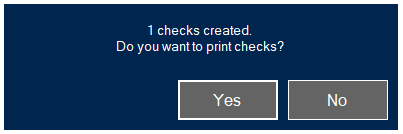
- a. Click Yes to open the check print dialog box and print the checks (see Print Checks section below).
- b. Click No to create the payments without printing a physical check.
- i. These payments will be added to the Check Entry Table and can be printed any time.
- ii. The Check Entry Table can be viewed by going to the following menu location: AP / Check Entry/Edit.


Print Checks
Menu Location: AP / AP Reports / Print Checks
Print Physical Checks
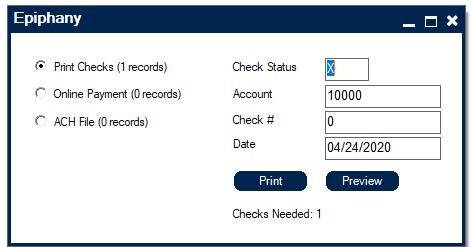
- 1. Select Print Checks radio button
- 2. Enter Account
- 3. Enter starting check number (in the case of payments that do not have a physical check number attached to them, such as ACH and online payments, unique custom check numbers should be used)
- 4. Load printer with stock
- 5. Click Print
- a. Upon clicking Print the GL postings and journal entries take place and the check status on the check records changes to P
- b. To see a preview of the check click Preview. This will not print the check, post to GL, create the journal entries, or alter the check status

Make An Online Payment
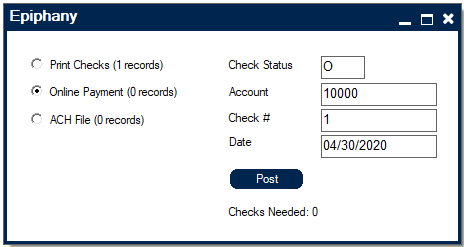
- 1. Select Online Payment radio button
- 2. Enter Account
- 3. Enter starting check number
- 4. Click Post

Create An Automated Clearing House (ACH) File
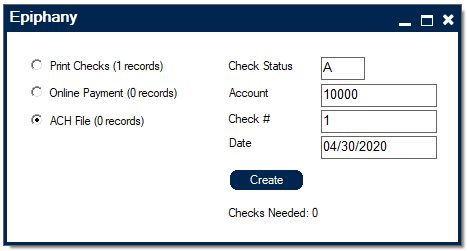
- 1. Select ACH File radio button
- 2. Enter Account
- 3. Starting check number - OPTIONAL. If using check numbers for ACH, the first check number must start with a number of 10 or higher.
- 4. Click Create

Reprint A Check
Menu Location: AP / Check Entry/Edit
- 1. Find Check Number to be reprinted
- 2. Click Re-Print button
- Check Status will change to “R” for Reprint
- 3. Go to Menu Location: AP / AP Reports / Print Checks
- 4. Change Check Status to “R”
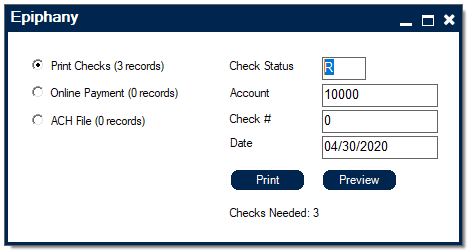
- 5. If paying from a non-standard checking GL account, enter the Account Number
- 6. Enter the Check Number from the physical check in the printer
- 7. Change Date if the check date is not today’s date
- 8. Click Print – In addition to printing the checks, the Check Printing process changes the Epiphany Database in the following ways:
- Check Status is changed to “P” for Printed
- The Check Number of the check is assigned
- A Journal Entry is created removing dollars from Cash GL account, and balancing with the Check Distribution amount on the check

Reprint a Check Stub Notification for an Employee
Menu Locaton: Applications / Insight Reporting / Accounts Payable / Payment Notification
- 1. Navigate to the Payment Notification Report
- 2. Enter the Check Number of the check stub to reprint.
- 3. Print or Save Report.
Void A Check
Menu Location: AP / Check Entry/Edit
- 1. Find Check Number to be Voided
- 2. Click Void Check button
- Check status will change to “V” for Void
- A Journal Entry is created to reverse the distributed amount
Check Entry/Edit
Menu Location: AP / Check Entry/Edit
The Check Entry/Edit screen is where check information can be entered and edited (when there is no AP Invoice). This screen also displays additional check information such as the check stub lines, check status, and the distributed amount of the check.
Enter A Check:
- 1. Click

- 2. Enter a check number
- 3. Select Person and/or Company (Lines below will autofill with the name and addresses attached to this Person or Company)
- 4. Enter account number
- 5. Enter distributed amount by entering the account number to be applied to and amount
- 6. Enter note for check stub lines (Optional)
- 7. Click

- 1. Click


Editing Check Information:
- 1. To edit check, click the
 button, enter in the relevant check information, and then click the button.
 - 2. To cancel an edit click the
 button.
- 1. To edit check, click the


Check Statuses:
- R = Reprint (edit check and change status to R to reprint, or click the
 button)
- A check with the status of ‘R’ will no longer be editable as it has been printed.
- X = Unprinted Check(check has not been printed yet)
- P = Printed(check has been printed)
- A check with the status of ‘P’ will no longer be editable as it has been printed.
- If Account Number is blank or Distributed Amount table has no entries, the check will not be printed.
- V = Voided(edit check and change status to V to void check, or click the
 button)
- A check with the status of ‘V’ will no longer be editable as it has been voided.
- O = Online
- Online checks produce a file instead of a physical check when printed. The file location can be set/found in defaults on the ‘Checks’ tab in the ‘ACH File Path’ field.
- A = ACH
- ACH checks produce a file instead of a physical check when printed. The file location can be set/found in defaults on the ‘Checks’ tab in the ‘ACH File Path’ field.
- Cleared Flag – Indicates when check has cleared.
- R = Reprint (edit check and change status to R to reprint, or click the


Reports
- Purchase Orders (Inventory / Inventory PO / Purchase Order or Open Purchase Orders)
- AP Aging
- See Insight Reporting for all available AP Reports
- Purchase Orders (Inventory / Inventory PO / Purchase Order or Open Purchase Orders)

