Manual:Accounts Receivable: Difference between revisions
No edit summary |
|||
| (65 intermediate revisions by 5 users not shown) | |||
| Line 1: | Line 1: | ||
[[Category:Applications]] | |||
=Accounts Receivable= | |||
===Sales Order=== | ===Sales Order=== | ||
: | '''Menu Location:''' Inventory / Inventory Order / Order | ||
#Order From / Ship To (Ship To defaults to Ordered By, but can be edited) | |||
#Cust PO – enter customer PO if they have one | |||
#Terms – enter terms of payment (if different from default) | |||
#SalesPerson – enter salesperson | |||
#Ship Via – enter carrier if specified | |||
#Rush – check if a rush order | |||
#Due Date – enter date needed if necessary | |||
#Ship Date – displays ship date | |||
#Purchase Order Lines – enter the purchase order line items and update as needed | |||
#Enter credit card information, if any or check C.O.D. | |||
'''Buttons''' | |||
:*'''Create AR Invoice''' – click to create invoice for displayed order | |||
: | :*'''Create PO''' – creates a purchase order for vendor | ||
:*'''Print Label''' – creates shipping label | |||
:*'''Create Pick List''' – creates pick list that can be printed to pick order for shipment | |||
:*'''Close Order''' – Changes <b>Close OR</b> flag to True on all Order Lines without impacting inventory counts and drops lines off open order lines report and open orders if all lines are closed | |||
:*'''Back Orders''' – generates a back order report showing what has shipped and what hasn't shipped | |||
: | |||
'''Copy An Order''' | |||
#Navigate to the order to copy | |||
#Click the Other Actions icon (ellipses) on the Toolbar and select Copy Record | |||
#Click OK on the pop-up message to see the newly copied order | |||
===Open Orders=== | |||
'''Menu Location:''' (Inventory / Inventory Order / Open Orders) | |||
:*Displays list and status of open orders | |||
:**Green = in stock | |||
:**Yellow = partial | |||
:**Red = Not received into inventory <br> | |||
'''To Print Copy of Order(s):'''<br> | |||
1. Select orders using Ctrl+left mouse click on the record selection square[[File:RecordSelection.PNG]]<br> | |||
2. Click '''Print Selected Orders'''<br> | |||
[[File:AR_Print_Selected_Orders.PNG]]<br> | |||
3. Check either box that applies and then click OK<br> | |||
4. After clicking OK, you will then see the ReportPreview, which you can then either save or print.<br> | |||
===Order Hold=== | |||
'''Menu Location:''' Inventory / Inventory Order / Order | |||
The Hold Open check box on the Order Screen is for filtering purposes. The Open Orders Report and the Purchase Orders List Report allow for filtering on orders that have the ‘Hold Open’ field on the Order checked allowing fulfilled orders to remain on these reports as if they were open. | |||
===Inventory Receipt=== | ===Inventory Receipt=== | ||
'''Menu Location:''' Inventory / Inventory Receipt List <br> | |||
:Actual | |||
:1. Fill out Order By section. Ship To section will auto-populate. Change Ship To address if necessary. | |||
:2. If needed, enter the following: | |||
::a. Enter Cust PO | |||
::b. Enter Ship Via | |||
::c. Enter Sales Person | |||
::d. Enter Category | |||
::e. Enter Location | |||
:3. Enter Code | |||
:4. Enter Qty to Pick (if pulling items, Enter Actual Qty Pulled) | |||
:5. Enter Part Number | |||
:6. Enter special instructions, if applicable | |||
-If pulling items, you can create an AR Invoice from those items: | |||
:1. Select Create AR Invoice | |||
:2. Most boxes will auto-populate | |||
:3. If necessary, put a comment on the invoice in the Comments box. | |||
:4. The invoice is now created. From there, you have the following options: | |||
::a. '''Create RMA''' - for returns a new order is created with a negative quantity to put item back into inventory | |||
::b. '''Single Print''' – Reprints invoice | |||
::c. '''Print Labels''' – shipping labels | |||
::d. '''Select Quote''' – allows for manually linking of quote to invoice (used rarely) | |||
::e. '''Select Order''' – allows for manually linking order to invoice | |||
::f. '''Print ProForma''' – Similar to a packing slip (used for International Shipments) | |||
::g. '''Packing List''' – prints packing slip for shipment | |||
::h. '''Back Orders''' – prints list of back orders | |||
::i. '''Send Email''' – send invoice as an email | |||
The following are also options on the Inventory Shipment/Pick List | |||
:1. Create ASN (Advanced Ship Notice) | |||
:2. Packing List. This will let you save or print a packing list. | |||
: | |||
===Invoice Screen=== | ===Invoice Screen=== | ||
'''Menu Location:''' AR / Invoice | |||
: | |||
::* Create RMA - for returns a new order is created with a negative quantity to put item back into inventory | :'''Buttons''' | ||
::* Single Print – Reprints invoice | ::*'''Create RMA''' - for returns a new order is created with a negative quantity to put item back into inventory | ||
::* Print Labels – shipping labels | ::*'''Single Print''' – Reprints invoice | ||
::* Select Quote – allows for manually linking of quote to invoice (used rarely) | ::*'''Print Labels''' – shipping labels | ||
::* Select Order – allows for manually linking order to invoice | ::*'''Select Quote''' – allows for manually linking of quote to invoice (used rarely) | ||
::* Print ProForma – Similar to a packing slip (used for International Shipments) | ::*'''Select Order''' – allows for manually linking order to invoice | ||
::* Packing | ::*'''Print ProForma''' – Similar to a packing slip (used for International Shipments) | ||
::*'''Packing List''' – prints packing slip for shipment | |||
::*'''Back Orders''' – prints list of back orders | |||
::*'''Send Email''' – send invoice as an email | |||
===Enter Invoice=== | |||
::1. Click Add | ::1. Click Add | ||
::2. Enter Bill To company | ::2. Enter Bill To company | ||
::*Ship to will auto-populate, update if necessary | |||
::3. Enter Customer PO number, if applicable | ::3. Enter Customer PO number, if applicable | ||
::4. Enter | ::4. Enter Location, if applicable | ||
::5. Enter SalesPerson, if applicable | ::5. Enter SalesPerson, if applicable | ||
::6. Enter AR Invoice Lines | ::6. Enter Ship Via, if preference | ||
::7. Ship Date will auto-populate, update if necessary | |||
::8. Term will auto-populate, update if necessary | |||
::9. Due Date will auto-populate, update if necessary | |||
::10. Enter AR Invoice Lines | |||
:::a. Select Code | :::a. Select Code | ||
:::b. Enter Quantity | :::b. Enter Quantity | ||
:::c. Enter Part Number | :::c. Enter Part Number | ||
:::d. Enter Price | :::d. Enter Price (if different from default) | ||
:::e. Tab through Total | :::e. Tab through Total | ||
:::f. If Tax Exempt, uncheck Tax box | :::f. If Tax Exempt, uncheck Tax box | ||
:::g. Enter Comment if needed | :::g. Enter Comment if needed | ||
:::h. Click Save | :::h. Click Save | ||
::11. Add comment in the comments section if necessary | |||
::12. Fill out credit card # | |||
===Email AR Invoices=== | ===Email AR Invoices=== | ||
'''Menu Location:''' Company | |||
::1. Search and select Company | ::1. Search and select Company | ||
::2. Click the Addresses Tab | ::2. Click the Addresses Tab | ||
::3. Complete the information in the Send Email area | ::3. Complete the information in the Send Email area | ||
::[[File:AR_Email_Invoice_Setup.png]] | ::[[File:AR_Email_Invoice_Setup.png]] | ||
:::• Email Invoice – check | :::• '''Email Invoice''' – check if invoice should be emailed to customer | ||
:::• Invoice Email – enter email address invoice should be sent to | :::• '''Invoice Email''' – enter email address invoice should be sent to | ||
:::• Payment Email – enter email payment confirmation should be sent to | :::• '''Payment Email''' – enter email payment confirmation should be sent to | ||
::*Sned invoice via Email | |||
::4. Click Save | ::4. Click Save | ||
===Email a Single Invoice=== | |||
'''Menu Location:''' AR / Invoice | |||
::1. Search and select the Invoice you want to email | ::1. Search and select the Invoice you want to email | ||
::2. Click | ::2. Click[[File:Send_Email.png]] | ||
::3. A popup email form will appear with the Invoice attached as a .PDF | ::3. A popup email form will appear with the Invoice attached as a .PDF | ||
::[[File:AR_Email_Invoice.png]] | ::[[File:AR_Email_Invoice.png]] | ||
| Line 79: | Line 146: | ||
::6. Click Send | ::6. Click Send | ||
===Email Multiple Invoices=== | |||
'''Menu Location:''' AR / Email Invoice Utility<br> | |||
:Note: One-time setup per customer is required (see Invoice Email Setup above)<br> | |||
::1. Run the Email Invoice Utility | ::1. Run the Email Invoice Utility | ||
::2. Complete the box with the correct criteria and click OK | ::2. Complete the box with the correct criteria and click OK | ||
:::• This will send the corresponding invoice(s) to all the companies that fit the criteria | :::• This will send the corresponding invoice(s) to all the companies that fit the criteria | ||
::[[File:AR_Email_Invoice_Utility.png]] | :::[[File:AR_Email_Invoice_Utility.png]] | ||
:::• Upon clicking | :::• Upon clicking '''OK''' the emails are sent, and a report is generated showing all the invoices that were sent. If any errors occur, make the necessary corrections to the email address and use the single email method above. | ||
If there are several invoices for a company, invoices will be combined into one .PDF file and one email will be sent to the company. | :If there are several invoices for a company, invoices will be combined into one .PDF file and one email will be sent to the company. | ||
===Pay AR Invoice=== | ===Pay AR Invoice=== | ||
'''Menu Location:''' AR / Pay AR Invoice | |||
::1. Select Company | ::1. Select Company | ||
::2. Select invoice(s) to apply payment to | ::2. Select invoice(s) to apply payment to | ||
:::* To select multiple Invoices use Ctrl+left mouse click on | :::*To select multiple Invoices use Ctrl+left mouse click on[[File:RecordSelection.PNG]] | ||
:::* If amount is less than invoice amount, highlight row and enter Amount Paid and Amount Credited, and then tab through the row | :::*If amount is less than invoice amount, highlight row and enter Amount Paid and Amount Credited, and then tab through the row | ||
:::* Amount to Pay will auto-calculate based on invoices selected | :::*Amount to Pay will auto-calculate based on invoices selected | ||
::3. Enter Payment Type | ::3. Enter '''Payment Type''' | ||
:::* If Check, select Check | :::*If Check, select Check | ||
:::** Enter Check No. | :::**Enter Check No. in '''Check / Ref #''' | ||
:::* If Credit Card, select Credit Card | :::*If Credit Card, select Credit Card | ||
:::**A dialog box will appear for entry of credit card information | |||
:::* Other Payments Types | :::*Other Payments Types may be available: | ||
:[[File:AR_Payment_Types.PNG]] | |||
===Payment History=== | ===Payment History=== | ||
: | Menu Location: AR / Payment History | ||
:Shows all payments | |||
===Create Deposit=== | ===Create Deposit=== | ||
'''Menu Location:''' AR / Create Deposit | |||
:Shows list of all checks received | :Shows list of all checks received | ||
::1. Select records for the individual deposit | ::1. Select records for the individual deposit | ||
:::* To select multiple Invoices use Ctrl+left mouse click on | :::*To select multiple Invoices use Ctrl+left mouse click on | ||
::2. Click Create Deposit | ::2. Click Create Deposit | ||
::3. Select Receipts for this Deposit | ::3. Select Receipts for this Deposit | ||
:::* To select multiple Invoices use Ctrl+left mouse click on | :::*To select multiple Invoices use Ctrl+left mouse click on | ||
:::* Verify Total at bottom | :::*Verify Total at bottom | ||
::4. Click Create Deposit | ::4. Click Create Deposit | ||
:::* The amount of deposit will match the amount on deposit slip provided to your bank | :::*The amount of deposit will match the amount on deposit slip provided to your bank | ||
=== | ===Reports=== | ||
::*Open Orders | |||
::* Open Orders | ::*Aging Report – lists of everyone owing money | ||
::* Aging Report – lists of everyone owing money | ::*Statement – list of all invoices with amounts credited and what is still due | ||
::* Statement – | ::*Sales Tax Return – sales tax on total gross sales report | ||
::* Sales Tax Return – sales tax on total gross sales report | ::**See insight reporting / Accounts Receivable for all available AR reports. | ||
=== | ===Create an Invoice from an Existing Quote or Order=== | ||
'''Menu Location:''' AR / Invoice | |||
::1. To Select an existing Quote, click [[File:Select_Quote.png]] | |||
::2. To select an existing Order, click [[File:Select Order.png]] | |||
::1. | :::*Information will auto-populate from existing Quote or Order and fields can be updated as necessary. | ||
:: | |||
:::* | |||
'''Verify the following:''' | |||
::a. Date (typically the date of Sale) | |||
::b. Customer Name (if Company name does not exist, click Add Record) | |||
::c. Person (optional) | |||
::d. Bill To and Ship To Addresses will automatically populate. If different, remove displayed address by clicking on – sign and then click on + sign to choose existing address from Address Table (or add new if needed) | |||
::e. Customer’s PO number, if applicable | |||
::f. SalesPerson, if applicable | |||
::g. Code (usually P1 for Inventory Sales or S1 for Service) | |||
::h. Quantity | |||
::i. Part Desc will auto-populates from the Inventory Table | |||
::j. Line Desc will auto-populate from the Inventory Table | |||
::k. Unit of product being sold (i.e. each, case, bottle, etc.) | |||
::l. Price (Unit) you are charging customer | |||
::m. Price will auto-calculate; Tab through fields | |||
::n. If item is nontaxable, tab to and uncheck this box | |||
::o. Comments pertaining to this invoice, if applicable | |||
::p. Click Save | |||
Latest revision as of 21:01, 27 May 2026
Accounts Receivable
Sales Order
Menu Location: Inventory / Inventory Order / Order
- Order From / Ship To (Ship To defaults to Ordered By, but can be edited)
- Cust PO – enter customer PO if they have one
- Terms – enter terms of payment (if different from default)
- SalesPerson – enter salesperson
- Ship Via – enter carrier if specified
- Rush – check if a rush order
- Due Date – enter date needed if necessary
- Ship Date – displays ship date
- Purchase Order Lines – enter the purchase order line items and update as needed
- Enter credit card information, if any or check C.O.D.
Buttons
- Create AR Invoice – click to create invoice for displayed order
- Create PO – creates a purchase order for vendor
- Print Label – creates shipping label
- Create Pick List – creates pick list that can be printed to pick order for shipment
- Close Order – Changes Close OR flag to True on all Order Lines without impacting inventory counts and drops lines off open order lines report and open orders if all lines are closed
- Back Orders – generates a back order report showing what has shipped and what hasn't shipped
Copy An Order
- Navigate to the order to copy
- Click the Other Actions icon (ellipses) on the Toolbar and select Copy Record
- Click OK on the pop-up message to see the newly copied order
Open Orders
Menu Location: (Inventory / Inventory Order / Open Orders)
- Displays list and status of open orders
- Green = in stock
- Yellow = partial
- Red = Not received into inventory
- Displays list and status of open orders
To Print Copy of Order(s):
1. Select orders using Ctrl+left mouse click on the record selection square
2. Click Print Selected Orders

3. Check either box that applies and then click OK
4. After clicking OK, you will then see the ReportPreview, which you can then either save or print.
Order Hold
Menu Location: Inventory / Inventory Order / Order
The Hold Open check box on the Order Screen is for filtering purposes. The Open Orders Report and the Purchase Orders List Report allow for filtering on orders that have the ‘Hold Open’ field on the Order checked allowing fulfilled orders to remain on these reports as if they were open.
Inventory Receipt
Menu Location: Inventory / Inventory Receipt List
- 1. Fill out Order By section. Ship To section will auto-populate. Change Ship To address if necessary.
- 2. If needed, enter the following:
- a. Enter Cust PO
- b. Enter Ship Via
- c. Enter Sales Person
- d. Enter Category
- e. Enter Location
- 3. Enter Code
- 4. Enter Qty to Pick (if pulling items, Enter Actual Qty Pulled)
- 5. Enter Part Number
- 6. Enter special instructions, if applicable
-If pulling items, you can create an AR Invoice from those items:
- 1. Select Create AR Invoice
- 2. Most boxes will auto-populate
- 3. If necessary, put a comment on the invoice in the Comments box.
- 4. The invoice is now created. From there, you have the following options:
- a. Create RMA - for returns a new order is created with a negative quantity to put item back into inventory
- b. Single Print – Reprints invoice
- c. Print Labels – shipping labels
- d. Select Quote – allows for manually linking of quote to invoice (used rarely)
- e. Select Order – allows for manually linking order to invoice
- f. Print ProForma – Similar to a packing slip (used for International Shipments)
- g. Packing List – prints packing slip for shipment
- h. Back Orders – prints list of back orders
- i. Send Email – send invoice as an email
The following are also options on the Inventory Shipment/Pick List
- 1. Create ASN (Advanced Ship Notice)
- 2. Packing List. This will let you save or print a packing list.
Invoice Screen
Menu Location: AR / Invoice
- Buttons
- Create RMA - for returns a new order is created with a negative quantity to put item back into inventory
- Single Print – Reprints invoice
- Print Labels – shipping labels
- Select Quote – allows for manually linking of quote to invoice (used rarely)
- Select Order – allows for manually linking order to invoice
- Print ProForma – Similar to a packing slip (used for International Shipments)
- Packing List – prints packing slip for shipment
- Back Orders – prints list of back orders
- Send Email – send invoice as an email
Enter Invoice
- 1. Click Add
- 2. Enter Bill To company
- Ship to will auto-populate, update if necessary
- 3. Enter Customer PO number, if applicable
- 4. Enter Location, if applicable
- 5. Enter SalesPerson, if applicable
- 6. Enter Ship Via, if preference
- 7. Ship Date will auto-populate, update if necessary
- 8. Term will auto-populate, update if necessary
- 9. Due Date will auto-populate, update if necessary
- 10. Enter AR Invoice Lines
- a. Select Code
- b. Enter Quantity
- c. Enter Part Number
- d. Enter Price (if different from default)
- e. Tab through Total
- f. If Tax Exempt, uncheck Tax box
- g. Enter Comment if needed
- h. Click Save
- 11. Add comment in the comments section if necessary
- 12. Fill out credit card #
Email AR Invoices
Menu Location: Company
- 1. Search and select Company
- 2. Click the Addresses Tab
- 3. Complete the information in the Send Email area
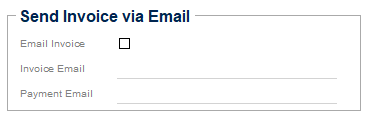
- • Email Invoice – check if invoice should be emailed to customer
- • Invoice Email – enter email address invoice should be sent to
- • Payment Email – enter email payment confirmation should be sent to
- Sned invoice via Email
- 4. Click Save

Email a Single Invoice
Menu Location: AR / Invoice
- 1. Search and select the Invoice you want to email
- 2. Click

- 3. A popup email form will appear with the Invoice attached as a .PDF
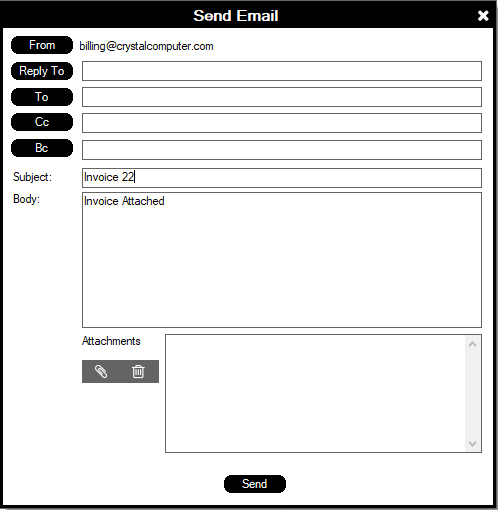
- 4. Enter “To” Email address
- 5. Attach additional files if desired by clicking “Attach” and navigating to the file
- 6. Click Send


Email Multiple Invoices
Menu Location: AR / Email Invoice Utility
- Note: One-time setup per customer is required (see Invoice Email Setup above)
- 1. Run the Email Invoice Utility
- 2. Complete the box with the correct criteria and click OK
- • This will send the corresponding invoice(s) to all the companies that fit the criteria
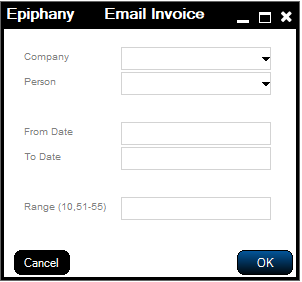
- • Upon clicking OK the emails are sent, and a report is generated showing all the invoices that were sent. If any errors occur, make the necessary corrections to the email address and use the single email method above.

- If there are several invoices for a company, invoices will be combined into one .PDF file and one email will be sent to the company.
Pay AR Invoice
Menu Location: AR / Pay AR Invoice
- 1. Select Company
- 2. Select invoice(s) to apply payment to
- To select multiple Invoices use Ctrl+left mouse click on

- If amount is less than invoice amount, highlight row and enter Amount Paid and Amount Credited, and then tab through the row
- Amount to Pay will auto-calculate based on invoices selected
- To select multiple Invoices use Ctrl+left mouse click on
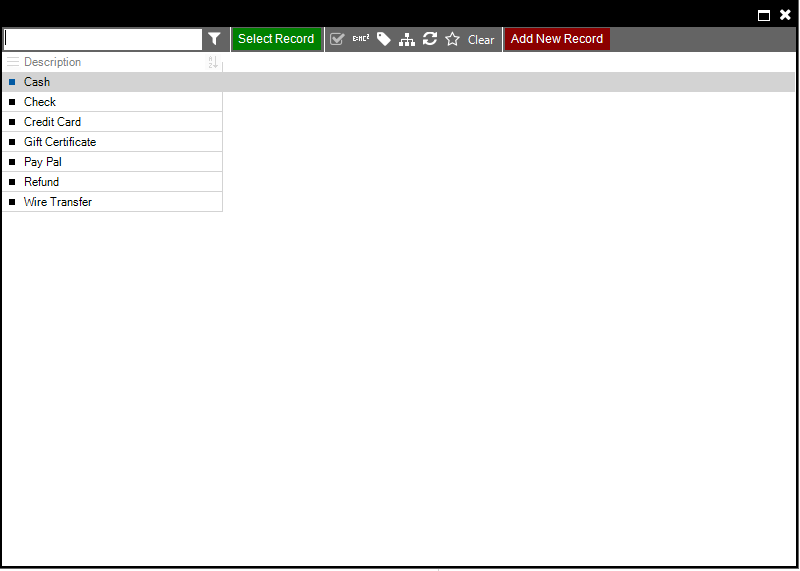
- 3. Enter Payment Type
- If Check, select Check
- Enter Check No. in Check / Ref #
- If Credit Card, select Credit Card
- A dialog box will appear for entry of credit card information
- Other Payments Types may be available:
- If Check, select Check

Payment History
Menu Location: AR / Payment History
- Shows all payments
Create Deposit
Menu Location: AR / Create Deposit
- Shows list of all checks received
- 1. Select records for the individual deposit
- To select multiple Invoices use Ctrl+left mouse click on
- 2. Click Create Deposit
- 3. Select Receipts for this Deposit
- To select multiple Invoices use Ctrl+left mouse click on
- Verify Total at bottom
- 4. Click Create Deposit
- The amount of deposit will match the amount on deposit slip provided to your bank
- 1. Select records for the individual deposit
Reports
- Open Orders
- Aging Report – lists of everyone owing money
- Statement – list of all invoices with amounts credited and what is still due
- Sales Tax Return – sales tax on total gross sales report
- See insight reporting / Accounts Receivable for all available AR reports.
Create an Invoice from an Existing Quote or Order
Menu Location: AR / Invoice
- 1. To Select an existing Quote, click
- 2. To select an existing Order, click

- Information will auto-populate from existing Quote or Order and fields can be updated as necessary.
- 1. To Select an existing Quote, click


Verify the following:
- a. Date (typically the date of Sale)
- b. Customer Name (if Company name does not exist, click Add Record)
- c. Person (optional)
- d. Bill To and Ship To Addresses will automatically populate. If different, remove displayed address by clicking on – sign and then click on + sign to choose existing address from Address Table (or add new if needed)
- e. Customer’s PO number, if applicable
- f. SalesPerson, if applicable
- g. Code (usually P1 for Inventory Sales or S1 for Service)
- h. Quantity
- i. Part Desc will auto-populates from the Inventory Table
- j. Line Desc will auto-populate from the Inventory Table
- k. Unit of product being sold (i.e. each, case, bottle, etc.)
- l. Price (Unit) you are charging customer
- m. Price will auto-calculate; Tab through fields
- n. If item is nontaxable, tab to and uncheck this box
- o. Comments pertaining to this invoice, if applicable
- p. Click Save

