HowTo:Add A Company: Difference between revisions
From Epiphany
Created page with "From the Epiphan Manual, please enter the content for "Add A Company" here." |
No edit summary |
||
| (10 intermediate revisions by 2 users not shown) | |||
| Line 1: | Line 1: | ||
==Add A Company== | |||
===Add Company from any Company Field=== | |||
'''Menu Location:''' Tables / Company | |||
:Search Database to make sure Company is not already in database | |||
::1. Click Search | |||
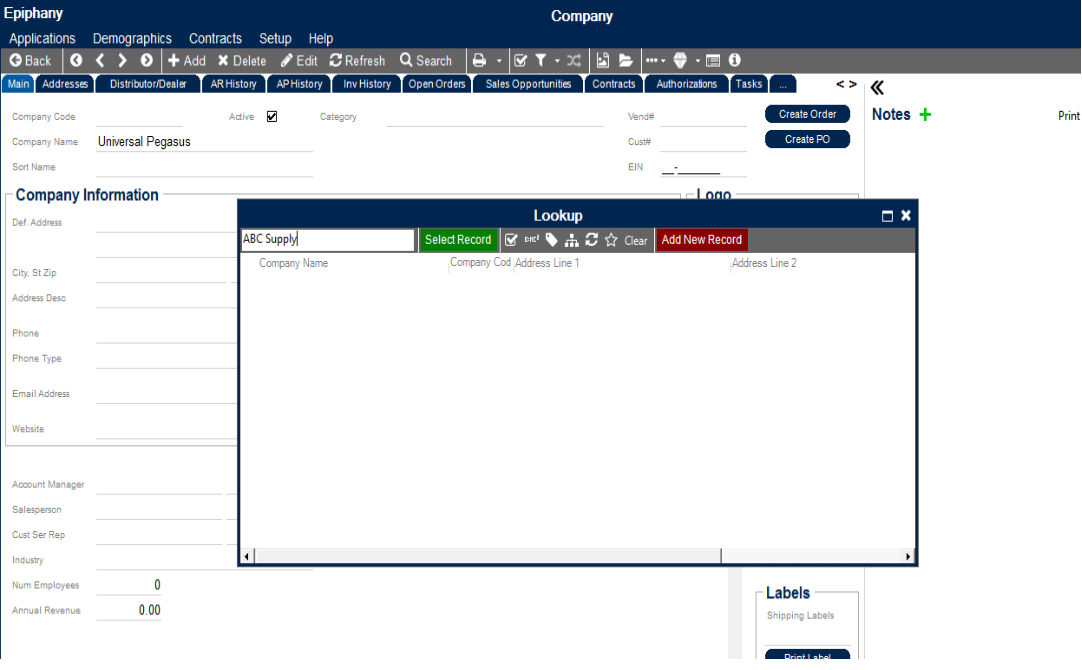
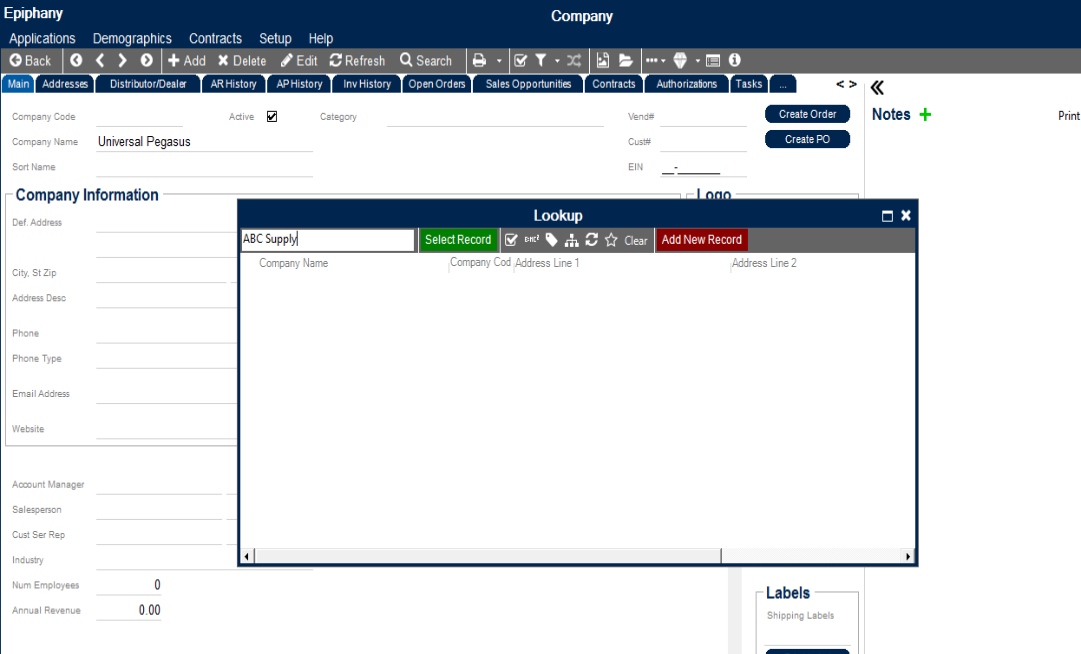
:::* As you begin typing the name of a Company, the Flex Lookup will filter the names. If the Name does not exist, click Add New Record, then click “Yes and Edit” to complete the Company Record. | |||
::[[File:Company.png]] | |||
::[[File:Company_Lookup.png]] | |||
:::* If the company name does exist and appears in the list, select the record and it will display on the screen. | |||
:::* New Company = any Vendors, Dealer/Distributors, etc., any form of a company. All companies are stored in the same table. | |||
:::* Also, from any Company Field on almost all screens a new Company can be added to the database. | |||
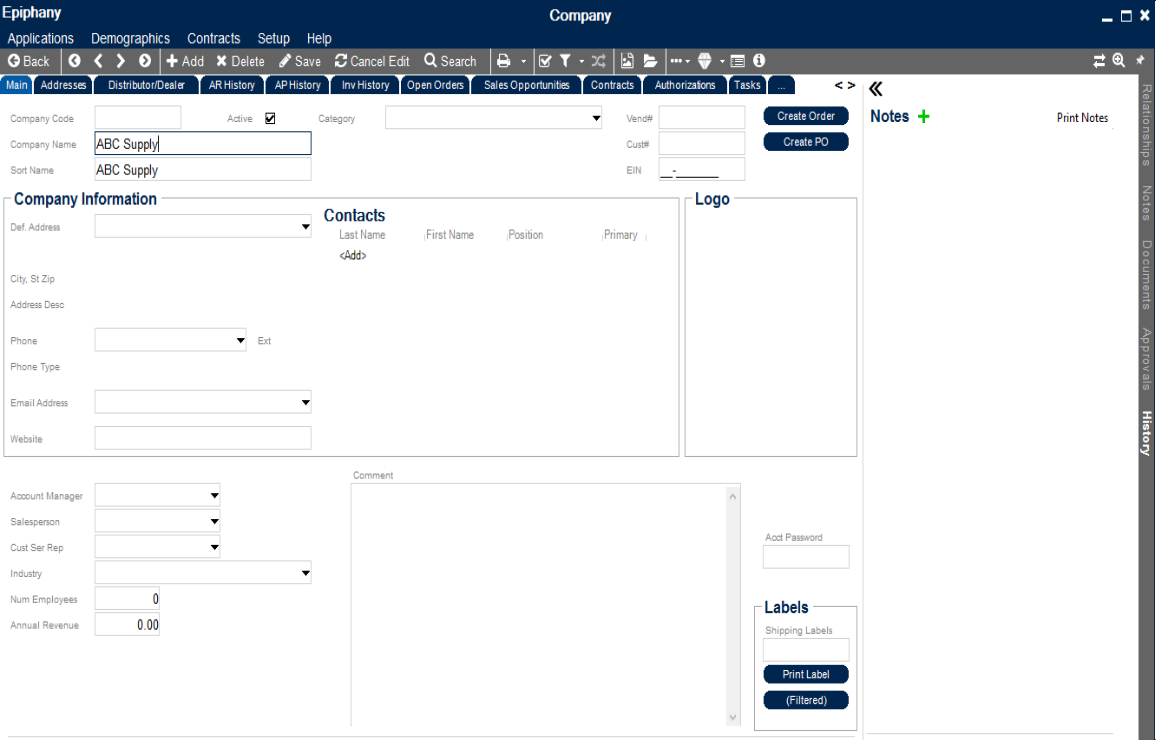
::2. Enter pertinent fields of data based on type of company being added to the database | |||
::[[File:Company_Lookup_Result.png]] | |||
:::* Important Fields for Vendors: | |||
:::** Company Name | |||
:::** Address | |||
:::** Phone Number | |||
:::** Terms Description | |||
:::** Expense Account | |||
:::* Important Fields for other Companies | |||
:::** Company Name | |||
:::** Address | |||
:::** Phone Number | |||
:::** Salesperson | |||
::3. Click Save | |||
:::Note: after saving, fields with no data may be hidden to enhance visibility of record. To see fields, click Edit. | |||
::4. Add Contacts from Company Table | |||
:::a. Click Edit on Toolbar | |||
:::b. Click <Add> in Contacts Grid | |||
:::c. Enter Last Name of Contact | |||
:::d. Click “Add New Record” | |||
:::e. Click “Yes, and Edit” | |||
:::f. Type in First Name of Contact | |||
:::g. Select Address (or add a new address if different from Company) | |||
:::h. Add Email address | |||
:::i. Type email address and click “Add New Record” | |||
:::j. Click “Yes” | |||
:::k. Add Phone Number | |||
:::l. Click “Add” | |||
:::m. Type phone number | |||
:::n. Select if already in list | |||
:::o. Click “Add New Record” if not in list | |||
:::p. Click Yes | |||
:::q. Click Save | |||
Latest revision as of 13:29, 15 April 2020
Add A Company
Add Company from any Company Field
Menu Location: Tables / Company
- Search Database to make sure Company is not already in database
- 1. Click Search
- As you begin typing the name of a Company, the Flex Lookup will filter the names. If the Name does not exist, click Add New Record, then click “Yes and Edit” to complete the Company Record.
- If the company name does exist and appears in the list, select the record and it will display on the screen.
- New Company = any Vendors, Dealer/Distributors, etc., any form of a company. All companies are stored in the same table.
- Also, from any Company Field on almost all screens a new Company can be added to the database.
- 2. Enter pertinent fields of data based on type of company being added to the database
- Important Fields for Vendors:
- Company Name
- Address
- Phone Number
- Terms Description
- Expense Account
- Important Fields for other Companies
- Company Name
- Address
- Phone Number
- Salesperson
- Important Fields for Vendors:
- 3. Click Save
- Note: after saving, fields with no data may be hidden to enhance visibility of record. To see fields, click Edit.
- 4. Add Contacts from Company Table
- a. Click Edit on Toolbar
- b. Click <Add> in Contacts Grid
- c. Enter Last Name of Contact
- d. Click “Add New Record”
- e. Click “Yes, and Edit”
- f. Type in First Name of Contact
- g. Select Address (or add a new address if different from Company)
- h. Add Email address
- i. Type email address and click “Add New Record”
- j. Click “Yes”
- k. Add Phone Number
- l. Click “Add”
- m. Type phone number
- n. Select if already in list
- o. Click “Add New Record” if not in list
- p. Click Yes
- q. Click Save
- 1. Click Search



