Manual:Accounts Payable
From Epiphany
Accounts Payable
Purchase Order
Menu Location: Inventory / Inventory PO / Purchase Order
- 1. Click Add
- 2. Enter Order From company
- 3. Enter Ship To company
- If blank, defaults to your organization’s address displayed on the Main tab (Ship To fields will be blank on Order)
- 4. Click Select Orders to choose Order (inserts Ref PO#)
- 5. Enter Purchase Order Lines and update as needed
- Buttons
- Create Invoice – creates Accounts Receivable invoice for customer in Ship To
- Select Orders (start with empty record) – creates a purchase order from an order
- Receive PO – receive items on Purchase Order into Inventory – creates an unassigned receipt; when invoice is received and entered, it relieves the unassigned receipt
Inventory Receipt
Menu Location: Inventory / Inventory Receipt – actual receiving of product from a BOL/packing slip
- 1. Search to find Order
- 2. Click Create Invoice button
- Create RMA – creates an RMA for the purchase order displayed
- 1. Search for Invoice
- 2. Click RMA (assigns RMA #)
- 3. Review Purchase Order Line information
Pay Invoices
Select Invoices
Menu Location: AP / Pay Invoices
- 1. Select all Invoices to Pay using Ctrl + left mouse click on
- 2. Click Pay Invoices Button
- Lists everything to be paid
- Lists everything to be paid
- 3. Click Create Checks
- Creates one check per customer (Pay To Company) and displays them in the Check Entry Table
Print Checks
Menu Location: AP / AP Reports / Print Checks
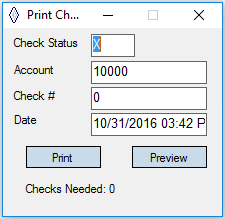
- 1. Enter Account
- 2. Enter starting check number
- 3. Load printer with stock
- 4. Click Print

Check Entry/Edit
Menu Location: AP / Check Entry / Edit
- 1. Click Add
- 2. Select Company or Person
- 3. Account Number—enter Cash account (COA)
- 4. Check Amount – enter check amount
- 5. Distributed Amount – enter Account Number to be applied to and amount
- 6. Check Stub (Stub Lines) – enter note for check stub lines
- 7. Click Save
- Check Statuses
- R = Reprint = R (edit check and change status to R to reprint)
- X = Unprinted Check (check has not been printed yet)
- P = Printed (check has been printed)
- If Account Number is blank or Distributed Amount table has no entries, nothing will print
- V = Voided (edit check and change status to V to void check)
- Cleared Flag – indicates when check has cleared
- Check Statuses
Pay Invoices(New)
Select/Approve AP Invoices:
Menu Location: AP / Pay Invoices
- 1. Select unpaid AP invoices to be approved/paid by clicking on the invoice line. (To deselect, click the invoice line again).
- 2. Once all invoices to be approved have been selected, click
 in the lower right corner.

Create Payments:
Menu Location: AP / Prepare Checks
- 1. The AP Payment Approval screen shows all invoices selected to be paid and invoices needing approval before being paid.
- a. To remove an invoice, select the invoice to be removed and click
 . This will remove the invoice line and move it back to the Pay AP Invoices screen (unpaid invoices).
 - b. The total amount due of all the invoices approved will display at the bottom right of this screen. If an invoice is removed the total will be adjusted accordingly.
- a. To remove an invoice, select the invoice to be removed and click
- 2. Click
 to create checks for these invoices.
 - 3. The following pop-up will appear:
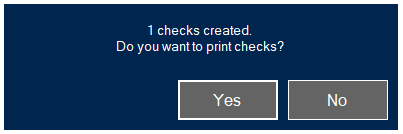
- a. Click yes to open the check print dialog and print the checks (see ‘Print Checks’ section below for instructions on this dialog).
- b. Click no to create the payments without printing checks.
- i. These payments will be added to the Check Entry Table and can be printed later.
- ii. The Check Entry Table can be viewed by going to the following menu location: AP / Check Entry/Edit.


Print Checks
Menu Location: AP / AP Reports / Print Checks To print physical checks:
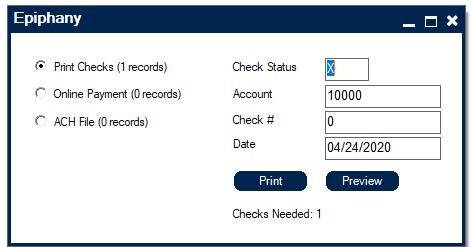
- 1. Select ‘Print Checks’ radio button
- 2. Enter Account
- 3. Enter starting check number (in the case of payments that do not have a physical check number attached to them, such as ACH and online payments, unique custom check numbers should be used.)
- 4. Load printer with stock
- 5. Click Print
- a. To see a preview of the check click Preview. This will not print the check or alter the check status.

Reports
- Purchase Orders (Inventory / Inventory PO / Purchase Order or Open Purchase Orders)
- AP Aging
- See Insight Reporting for all available AP Reports
- Purchase Orders (Inventory / Inventory PO / Purchase Order or Open Purchase Orders)
Entering an Invoice
Menu Location: AP / AP Invoice
- 1. Select
 from the Toolbar
 - 2. To Select from an existing Purchase Order, click

- a. Information will auto-populate from existing Purchase order and fields can be updated as necessary, OR enter invoice manually:
- b. Enter Date (typically the date of the Invoice)
- c. Enter Vendor’s Name (if name doesn’t exist, click Add Record)
- d. Enter Person (optional)
- e. Address will automatically populate, if different, remove displayed address by clicking on – sign and then click on + sign to choose existing address from Address Table (or add new if needed)
- f. Pay To field is auto-populated; however, if paid by Credit Card, then remove default Company and enter Credit Card Company
- g. Sup Inv# – Invoice number appearing on Invoice
- h. Terms – default (change if needed)
- i. Due date defaults to current date, but can be changed as needed
- j. Enter Quantity
- k. Enter or select Account then tab through Line Desc (auto-populated)
- l. Unit price may auto-populate, but can be updated as needed (tab through Line Desc, and Price fields)
- m. Enter any pertinent comments
- n. Save
- Verify the total on the screen matches the total on the Invoice
- Create RMA – creates an RMA for the purchase order displayed
- 1. Search for Invoice
- 2. Click RMA (assigns RMA #)
- 3. Review Purchase Order Line information


Reprint a Check
Menu Location: AP / Check Entry / Edit
- 1. Find Check Number to be reprinted
- 2. Click Re-Print button
- Check Status will change to “R” for Reprint
- 3. Go to Menu Location: AP / AP Reports / Print Checks
- 4. Change Check Status to “R”
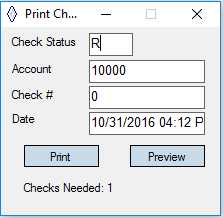
- 5. Account Number is only used if you are paying from a non-standard checking GL account
- 6. Enter the Check Number from the physical check in the printer
- 7. Change Date if the check date is not today’s date
- 8. Click Print – In addition to printing the checks, the Check Printing process changes the Epiphany Database in the following ways.
- Check Status is changed to “P” for Printed.
- The Check Number of the check is assigned
- A Journal Entry is created removing dollars from Cash GL account, and balancing with the Check Distribution amount on the check

Void a Check
Menu Location: AP / Check Entry / Edit
- 1. Find Check Number to be Voided
- 2. Click Void Check button
- Check status will change to “V” for Void
- A Journal Entry is created to reverse the distributed amount
Pay AP Invoice When Payments Are Made Online (no physical check)
Menu Location: AP / AP Invoice
- 1. Determine last check number used by clicking
 through Invoices to get to last Check Number used for non-physical check

Menu Location: AP / Pay Invoice
- 1. Sort by Pay To company
- 2. Use Ctrl key to select Invoices to Pay
- 3. Click Pay Invoices
- 4. Print Check
Menu Location: AP / AP reports / Print Checks
- 1. Change Date to Date Paid Online
- 2. Cancel hard copy print to printer

