Manual:Electronic Signatures
Electronic Signatures and Approvals
Electronic signatures allow users to sign off on system objects and appear in the Approvals tab on the Relationships Bar. For example, an electronic signature can be configured for Purchase Orders so that a manager can electronically sign the purchase order to approve it. To configure an electronic signature, follow the steps below:
- Navigate to the Electronic Signature Configuration Screen by selecting the Administration menu and Options > Electronic Signature Configuration.
- In the Flex Search pop-up, select the object that you would like to attach an approval to (see below).
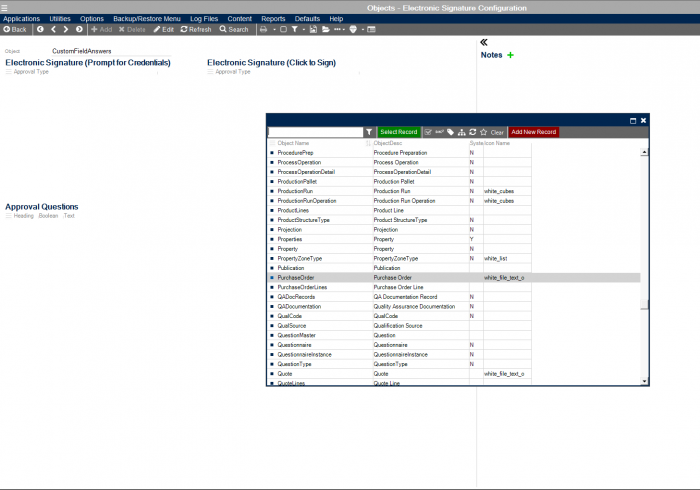
- There are two types of Electronic Signatures that can be configured. One will prompt the user to enter their Epiphany credentials before the sign off, while the other will allow the user to sign off with a single click.
- To add a signature to the Approvals for the object you selected, click Edit and the <add> under the signature type that you would like to add (see below).
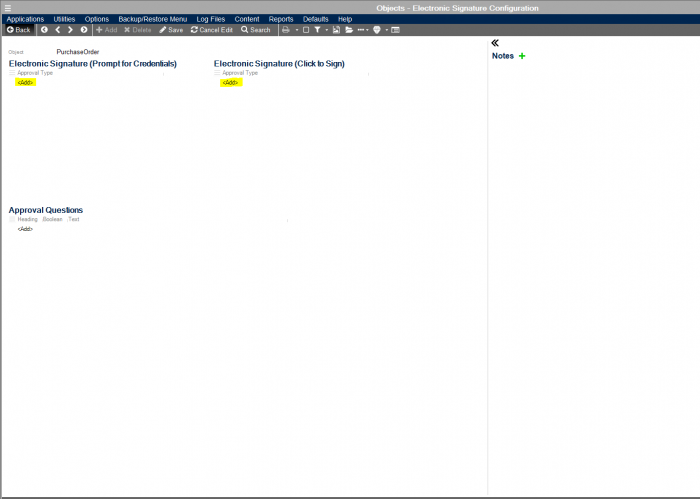


5. A Flex Search pop-up will appear with existing record approval types. If you want to add an existing approval type simply select it, otherwise select ‘Add New Record’. The following pop-up will appear:

Select ‘Yes, and Edit’.
7. You will then be taken to the Record Approval Types screen. Select ‘Edit’ and enter in the relevant information about the approval. The name or type of the approval should be entered in ‘Approval Type’. Users who have the authority to sign off on the approval should be added to the ‘Only These Users are Approved’ table. Only users added to this table will be allowed to sign off on the approval (see below).

-Private Flag: Checking this flag hides the signatures from users who do not have Read access to the Approval Screen. If it is unchecked all users will be able to see the signatures.
-Remove All Sig: Checking this flag will cause this electronic signature to remove all remaining ‘signature required’ notifications for other signatures.
8. Once the appropriate information for the approval type has been entered click ‘Save’. If you click ‘Back’ you will now see that the record approval type that you created will have been added to the Electronic Signature table (see below).

9. If you open a purchase order and select the ‘Approvals’ side bar tab, you will now see the approval you created (see below).
